 Loading... Please wait...

Recent Posts
MicroPython on ESP32: Beginner's Guide to Programming, Setup, and IoT Project Basics
Posted by on
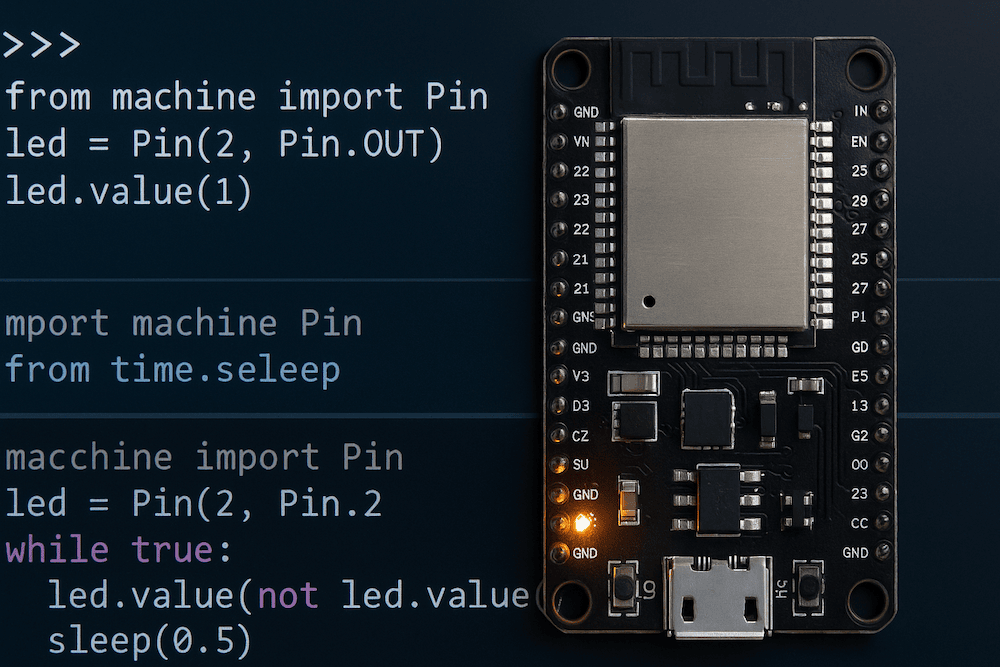 MicroPython is a lean re-implementation of Python 3 designed for microcontrollers. It provides an interactive REPL(Read-Evaluate-Print Loop) and supports a large subset of the Python standard library, making embedded programming more accessible to those familiar with Python. In simple terms, MicroPython lets you write Python code to control hardware like the ESP32 without the need for the lower-level C/C++ typically used in microcontroller programming. This means you can leverage Python’s simplicity and readability to program sensors, LEDs, and even network functions on a tiny device.
Why Use MicroPython with the ESP32?
Using MicroPython is a great way to get the most out of an ESP32 board, and conversely the ESP32 is an excellent platform for MicroPython. ESP32 is a popular low-cost, low-power system-on-chip microcontroller with built-in Wi-Fi and Bluetooth capabilities and a dual-core 32-bit processor. This chip can run at up to 240 MHz and has around 520 KB of internal RAM – resources that are quite generous for a microcontroller and more than enough to comfortably run a Python interpreter. The ESP32’s horsepower and memory allow MicroPython to execute efficiently, while its Wi-Fi and Bluetooth enable advanced projects like IoT devices. In fact, the ESP32 was designed for connectivity and versatility, offering many I/O peripherals (GPIO pins for digital I/O, ADCs for analog input, DAC, SPI, I²C, UART, PWM, etc.) that MicroPython can readily use. This combination of a powerful chip and a high-level language means you can blink LEDs, read sensors, or connect to the Internet with minimal code and without dealing with complex toolchains.
Another reason the ESP32 pairs well with MicroPython is the strong community and official support. The ESP32 has an official MicroPython port, so the firmware is actively maintained and optimized for the ESP32’s features. Many common tasks (like controlling hardware or connecting to Wi-Fi) are built into MicroPython’s libraries for this board. In short, MicroPython makes it extremely easy to program digital electronics on the ESP32, lowering the barrier for beginners. Instead of writing C code and using an Arduino or ESP-IDF toolchain, you can write a few lines in Python and see immediate results, which is great for learning and prototyping.
 ESP32S3 CAN & LIN-Bus Board
Powerful, compact, and built for real-world automotive and industrial networking. The ESP32S3 CAN & LIN-Bus Board combines dual-core processing with Wi-Fi, Bluetooth, and native CAN/LIN transceivers—making it the perfect platform for gateways, diagnostics, and control applications.
This board is powered by the ESP32-S3-WROOM-1-N8R8 module, featuring integrated Wi-Fi, Bluetooth 5 (LE/mesh), and an onboard CAN transceiver. A dedicated TJA1021T LIN transceiver provides full LIN-Bus support, making it ideal for automotive and industrial applications. For easy development, it includes a USB-C interface for programming, along with BOOT and RESET buttons and a multi-color RGB status LED. More information...
Setting Up MicroPython on an ESP32
Before you can run Python code on your ESP32, you need to install the MicroPython firmware on the board. Unlike some dedicated MicroPython boards, generic ESP32 boards do not come with MicroPython pre-installed. This means the first step is flashing the MicroPython firmware onto the ESP32. Don’t worry – this is a straightforward process.
1. Get the MicroPython Firmware: Visit the official MicroPython downloads page and download the latest ESP32 firmware (.bin file). It’s recommended to start with the stable firmware build for your ESP32 board. The firmware is essentially the MicroPython interpreter compiled for the ESP32 chip.
2. Connect the ESP32 in Bootloader Mode: To flash the firmware, your ESP32 board needs to be in programming (bootloader) mode. Many ESP32 development boards have a built-in USB-to-UART converter and support auto-bootloader entry – meaning the flashing tool can reset the board into the right mode automatically. On these boards (for example, the ESP32 DevKit V1 or Adafruit Feather ESP32), you usually don’t have to do anything special besides plugging in the USB cable. If your board doesn’t enter programming mode automatically, you may need to hold down a BOOT (or IO0) button while resetting the board to trigger the bootloader. (Consult your board’s documentation for the exact method, as it can vary.)
3. Flash the MicroPython Firmware: There are a couple of ways to upload the firmware file to the ESP32. One beginner-friendly method is using the Thonny IDE, which has a built-in tool to install MicroPython on supported boards. In Thonny, you can select the ESP32 as your target interpreter (MicroPython (ESP32)), choose the correct COM port, and then click on “Install or update MicroPython.” Thonny will prompt you to select your board and the firmware; it can even download the latest version for you. After you click Install, Thonny will erase the ESP32’s flash and upload the new MicroPython firmware automatically. (If you’re using an ESP32, you might be asked to press the BOOT button during this process to assist with flashing.) Within a few seconds, the firmware will be written, and your board will reboot into MicroPython.
Alternatively, you can flash the firmware using the command-line tool esptool.py (a Python-based utility from Espressif). After installing esptool with pip, you would open a terminal and run a command to write the firmware file to the ESP32’s flash memory. For example, on a typical setup you might use:
esptool.py --chip esp32 --port /dev/ttyUSB0 write_flash -z 0x1000 esp32-[firmware].bin
This command erases the flash (if not done separately) and copies the MicroPython binary to the ESP32. Once it completes without errors, MicroPython is installed on the board. (Ensure you replace /dev/ttyUSB0 with your board’s port and use the correct firmware filename.) If you encounter any issues flashing (like connection errors), try lowering the baud rate or double-checking that the board is in bootloader mode.
4. Access the MicroPython REPL: After a successful flash, the ESP32 will reboot and start running MicroPython. You can now connect to the board’s serial console to access the MicroPython prompt, known as the REPL. If you’re using Thonny, it will automatically open a Shell panel showing the >>> prompt once the board resets. Otherwise, you can use any serial terminal program (PuTTY, Tera Term, screen, etc.) to connect to the board’s COM port at 115200 baud (the default baud rate for ESP32 MicroPython). When you see the >>> in your terminal, that means you’re in the MicroPython REPL – essentially a live Python interpreter running on the ESP32.
At the REPL prompt, you can type Python commands and have the ESP32 execute them immediately. This is a fantastic feature of MicroPython because it allows interactive experimentation. There’s no need to compile or upload code for testing small things; you can try out commands one at a time and see the result on the fly. For example, you can turn on an LED or read a sensor value just by entering a couple of commands, which is great for debugging and learning. (If you don’t see a prompt, try pressing the RESET button on the ESP32 board once, or clicking the “Stop/Restart” button in your IDE, to reboot the board into MicroPython.)
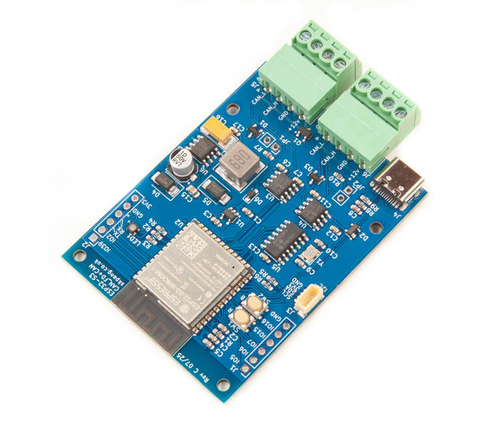 ESP32S3 Board with CAN FD and Classical CAN Ports
This development board is built around the ESP32-S3-WROOM-1-N8R8 module, offering a powerful combination of wireless connectivity, advanced processing capabilities, and robust CAN communication. The ESP32-S3 integrates Wi-Fi, Bluetooth 5 (including LE and mesh), and includes native support for Classical CAN. For modern automotive and industrial networking needs, CAN FD is supported via the external MCP2518FD controller, making the board suitable for both legacy and next-gen CAN-based applications.
Unlike many ESP32 boards that rely on a separate USB-to-UART bridge, this board features native (True) USB support via the ESP32-S3’s integrated USB OTG interface. This enables direct USB connectivity for programming, debugging, and serial communication without the need for an external USB-UART chip. More information...
Writing and Running MicroPython Code on ESP32
With MicroPython running, you essentially have a tiny Python machine at your disposal on the ESP32. There are two main ways to run code on the device: interactively via the REPL, or by writing scripts that the board can execute (either on demand or automatically at startup).
Interactive mode (REPL): At the >>> prompt, you can type any valid Python code. The MicroPython REPL works just like the standard Python REPL on a PC – you enter an expression or statement, and it executes immediately. Let’s walk through a simple test to make sure everything is working: toggling the ESP32’s built-in LED. Many ESP32 development boards have a built-in LED (usually a small blue LED) connected to a specific GPIO pin (often GPIO 2on the DevKit boards). We can control this LED using MicroPython’s machine module. For instance, try the following at the prompt:
If you’re using a typical ESP32 board, the on-board LED should light up when you set its value to 1. To turn it off, you would do led.value(0). This quick test confirms that MicroPython is running and you can manipulate the ESP32’s pins.
Now, turning an LED on and off manually is fine, but usually we want the board to run a program for us. Let’s create a simple blinking LED program. You can write the code in an editor and save it to the ESP32’s flash storage, or even type it in the REPL for quick testing. A basic blinking loop in MicroPython might look like this:
To have the ESP32 run a program automatically on startup, save the script as main.py on the board’s filesystem. MicroPython will automatically execute it on boot. You can use your IDE’s upload feature or tools like ampy to copy the file. Once saved and rebooted, the LED should start blinking on its own after each reset.
Using external modules: MicroPython on ESP32 includes many modules to interact with hardware. There are modules for controlling timers, PWM, ADC, I2C, SPI, and more. MicroPython is very similar to standard Python, but with a smaller library. For beginners, this rarely causes problems, as most hardware-focused tasks are supported.
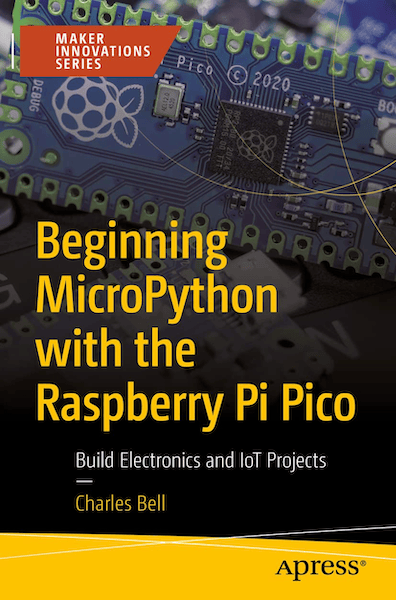 Beginning MicroPython with the Raspberry Pi Pico: Build Electronics and IoT Projects
Learn how to program the Raspberry Pi Pico—the latest microcontroller board from Raspberry Pi—with MicroPython. This hands-on guide introduces you to the Pico’s hardware, shows you how to get started quickly, and explores alternative microcontrollers for comparison.
You'll begin by writing and testing MicroPython code on your PC, then transition to working directly with the Pico using breadboard circuits and essential electronic components. Step-by-step example projects guide you through hardware connections and code execution, helping you apply core concepts to real-world scenarios.
As your skills grow, you'll explore Internet of Things (IoT) applications, including how to send data to the cloud. Learn how cloud platforms are used in modern IoT systems and get practical experience using ThingSpeak to connect your Pico to the Internet and host real-time data.
Beginning MicroPython with the Raspberry Pi Pico equips you with the knowledge to build practical projects and lays the foundation for more advanced IoT and cloud-based applications. More information...
Common Examples with MicroPython on ESP32
Blinking an LED
Blinking an LED is the classic first project. Conceptually:
-
Configure a GPIO pin as output
-
Toggle its value periodically
-
Add delays between toggles using
sleep()
This example demonstrates real-world control using high-level code and no need for low-level hardware drivers.
Connecting to Wi-Fi
ESP32’s wireless capability is one of its best features. Using MicroPython’s network module:
-
Set up a station interface
-
Activate the interface
-
Connect using SSID and password
-
Wait for connection and retrieve IP with
ifconfig()
This allows you to build IoT devices, servers, or clients directly on the ESP32 using familiar Python concepts.
Strengths and Limitations of MicroPython on ESP32
Strengths:
-
Easy syntax, beginner-friendly
-
Interactive REPL speeds up testing
-
High-level features (lists, strings, classes)
-
Wi-Fi and networking capabilities
-
Great for prototyping and education
Limitations:
-
Slower than native C/C++
-
Limited memory and library support
-
Some ESP32 hardware features may not be fully exposed
-
Smaller ecosystem compared to Arduino
Still, for most hobbyist and educational applications, MicroPython with the ESP32 strikes an excellent balance between power, simplicity, and accessibility.
References
-
MicroPython Documentation – “Getting started with MicroPython on the ESP32”
-
Random Nerd Tutorials – “Getting Started with MicroPython on ESP32 and ESP8266”
-
Random Nerd Tutorials – “Getting Started with Thonny MicroPython IDE for ESP32/ESP8266”
-
Random Nerd Tutorials – “Getting Started with the ESP32 Development Board”
-
Instructables – “ESP32 – Getting Started MicroPython (Blink LED)”
-
TechTutorialsX – “ESP32 MicroPython: Connecting to a WiFi Network”
-
Reddit r/esp32 – Thread: “Is MicroPython any good?”